Use GitLab as your Authentication Provider
This guide will walk you through the steps necessary to configure Gitlab as the authentication provider for your Okteto instance.
GitLab's OpenID Connect documentation has more details.
Prerequisites
- A working installation of Okteto
- Helm 3.0+ installed on your local machine
- Access to a GitLab account with permissions to enable and configure OAuth and OpenID, on gitlab.com or on a self-hosted GitLab instance
The examples use https://gitlab.com. If you use a self-hosted GitLab instance, replace gitlab.com with your GitLab instance's URL.
Create the GitLab Application
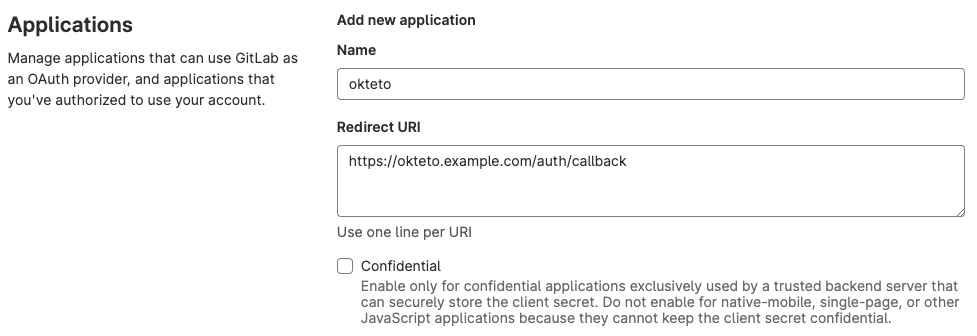
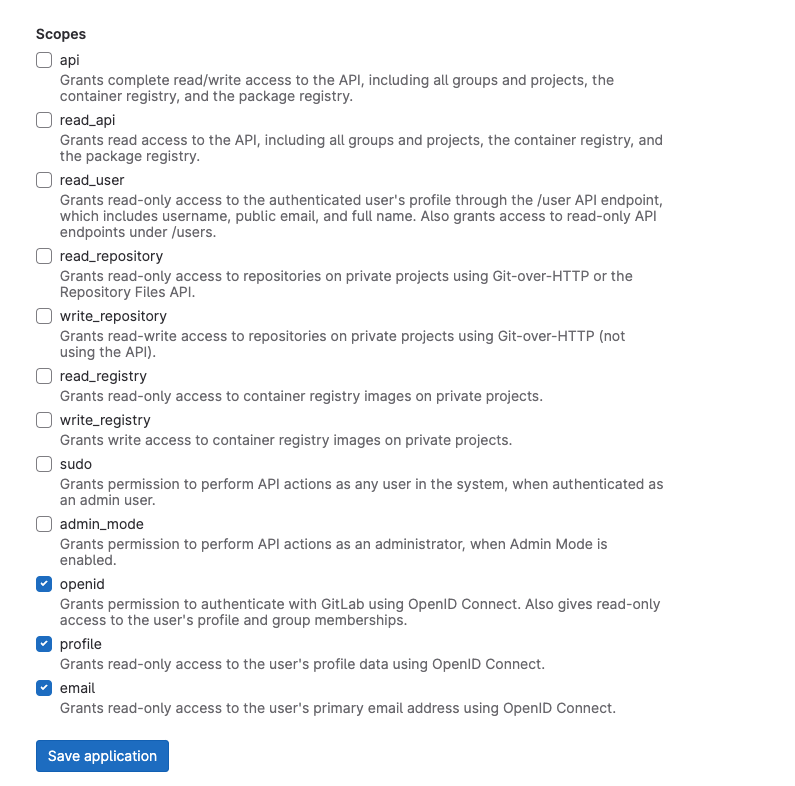
Create a new OAuth application integration, using the values below:
- Name: "okteto"
- Redirect URI: "https://okteto.${YOUR_DOMAIN}/auth/callback"
- Clear the
Confidentialcheckbox - Select the following scopes:
openidprofileemail
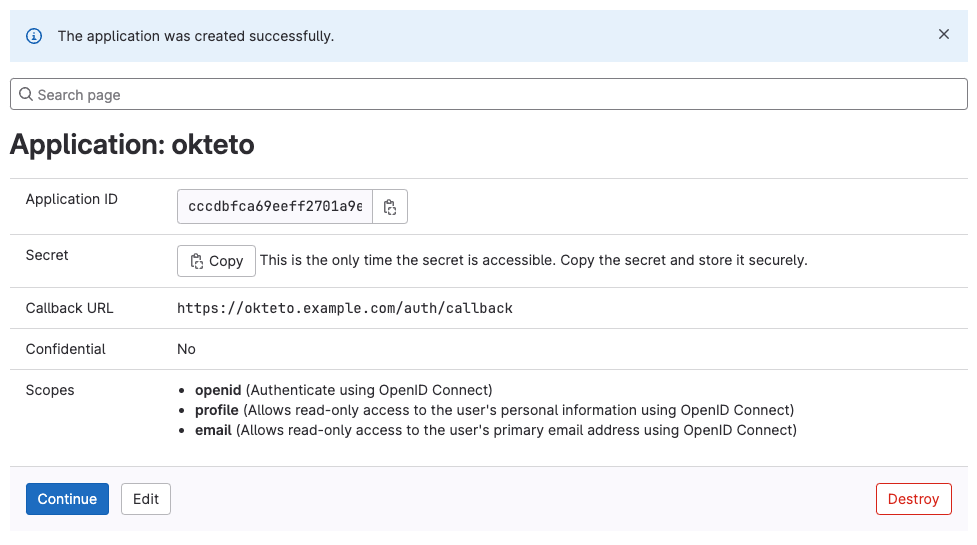
After you create the application, copy the Application ID and Secret values. You need them to configure Okteto.
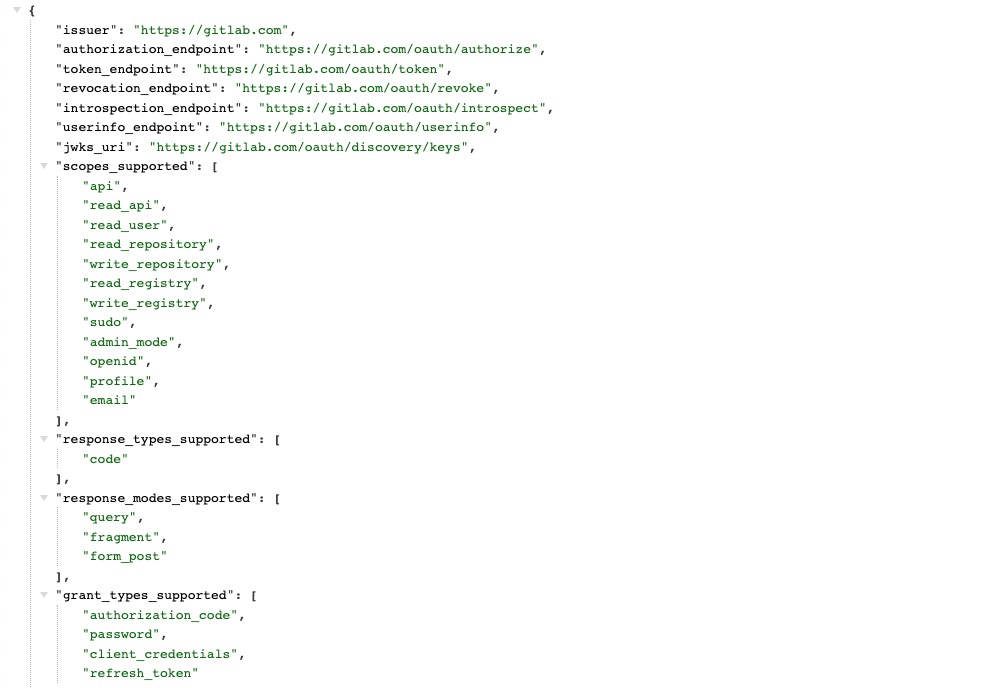
Open https://gitlab.com/.well-known/openid-configuration and copy the issuer and authorization_endpoint values. You need them to configure Okteto.
Configure Okteto
When the GitLab application is ready, update the auth section of your Okteto Helm configuration file with the values you copied in Create the GitLab Application:
auth:
  openid:
    enabled: true
    clientId: $CLIENT_ID
    clientSecret: $CLIENT_SECRET
    endpoints:
      issuer: "https://gitlab.com"
      authorization: "https://gitlab.com/oauth/authorize"
    mapping:
      externalIDKey: email
You can also store the
clientSecretvalue in a Kubernetes secret.
Upgrade your Okteto instance to apply the new configuration. Upgrade to the same version you already run: it keeps the changes to a minimum and makes any issue easier to troubleshoot.
After the upgrade completes, open your Okteto instance and click Log In. If the configuration is correct, Okteto authenticates users with GitLab.
Customize the attributes that Okteto consumes
By default, Okteto will use the following attributes below when creating a user:
Nameas the user's display name.Nicknameas the user's username.Emailas the email. Addresses must contain only lowercase alphanumeric characters, '-', or '.'Picture URLfor the user's profile picture.
If you don't use some of those values, or you want to change which attributes Okteto maps, set the mapping field inside the openid key in your Helm configuration file.
auth:
  openid:
    enabled: true
    clientId: $CLIENT_ID
    clientSecret: $CLIENT_SECRET
    endpoints:
      issuer: "https://gitlab.com"
      authorization: "https://gitlab.com/oauth/authorize"
    mapping:
      externalIDKey: nickname
      nameKey: name
      emailKey: email
      pictureKey: picture
The value of every key in the mapping section must match a claim in your GitLab OpenID configuration, and it must contain a non-empty value. The claims_supported section of https://gitlab.com/.well-known/openid-configuration lists the available claims.