GitHub integration
The GitHub integration uses a GitHub App to give your developers access to private GitHub repositories. With it:
- Your users select a repository from a list, instead of typing the full repository URL.
- Everyone in your cluster gets read-only access to private repositories.
- You control access to Okteto and to the repositories for the whole organization, or per repository.
- Pipelines use an app-scoped token instead of a shared SSH key.
Configuration Steps
Setting up the GitHub integration takes steps in GitHub and in your Okteto instance. In GitHub:
In your Okteto instance:
Once you complete these steps, your Okteto instance authenticates with the GitHub App when it clones repositories in Okteto pipelines.
Creating the GitHub App
- In the upper-right corner of any page in GitHub, select your
profile icon > Organizations. - Click the
settingsof the organization where you want to create the app. - In the left navigation, select
Developer settings > GitHub Apps. - Select
New GitHub App. - Complete the following fields as follows:
GitHub App Name:enter an appropriate name for your application (e.g.okteto-$YOUR_GITHUB_ORGANIZATION)Homepage URL:https://okteto.$SUBDOMAINCallback URL:https://okteto.$SUBDOMAIN/auth/callback?origin=github (required if you use GitHub as your authentication provider)
- Uncheck the
Expire user authorization tokensoption. - Check the
Request user authorization (OAuth) during installationoption. - In the
Post Installationsection, check theRedirect on updateoption. - In the
Webhooksection, uncheck theActiveoption. - In the
Repository permissionssection, set theContentspermission toRead-only. - In the
Organization permissionssection, set theMemberspermission toRead-only. - In the
Account permissionssection, set theEmail addressespermission toRead-only. - In the
Where can this GitHub App be installed?section, select theAny accountoption. This lets your users install the app in their own GitHub accounts and deploy their personal repositories in your Okteto instance. - Click the
Create GitHub Appbutton. - On the next screen, copy the
App IdandClient Idvalues. You add them to your Okteto configuration in Adding the GitHub App Configuration to Okteto.
GitHub's developer guide covers creating a GitHub App in more detail.
Generating a private key for the GitHub App
After you create the GitHub App, generate a client secret and a private key to authenticate to it:
- In the upper-right corner of any page in GitHub, select your
profile icon > Organizations. - Click the
settingsof the organization where you created the app. - In the left navigation, select
Developer settings > GitHub Apps. - Select the GitHub App.
- In the
Client secretssection, click theGenerate a new client secretbutton. Copy the value and save it somewhere safe: GitHub doesn't display it again. You add it to your Okteto configuration in Adding the GitHub App Configuration to Okteto. - In the
Private keyssection, at the bottom of the page, click theGenerate a private keybutton. A file with the private key is saved to your computer.
Adding the GitHub App Configuration to Okteto
Add the values you generated in GitHub to your Helm configuration file:
github:
  enabled: true
  appId: "${YOUR_APP_ID}"
  clientId: ${YOUR_CLIENT_ID}
  clientSecret: ${YOUR_CLIENT_SECRET}
  installationUrl: https://github.com/apps/${YOUR_GITHUB_APP_NAME}/installations/new
  appPrivateKey: |
    -----BEGIN RSA PRIVATE KEY-----
    ......
    .....
    -----END RSA PRIVATE KEY-----
You can also store the
clientSecretand theappPrivateKeyin a secret.
appId,clientId, andclientSecretare the values of the GitHub App you created.appPrivateKeyis the private key you generated.
If you use GitHub as your authentication provider, you can also use your GitHub App's
appIdandclientIdvalues in theauth.githubsection of your Helm configuration file.
After you update your Helm configuration file, run the following command to reconfigure your Okteto instance:
helm upgrade okteto okteto/okteto -f config.yaml --namespace=okteto
For a new installation, run the following command instead:
helm install okteto okteto/okteto -f config.yaml --namespace=okteto
Verifying your installation
If the installation succeeded, the Deploy Dev Environment dialog shows a GitHub tab.
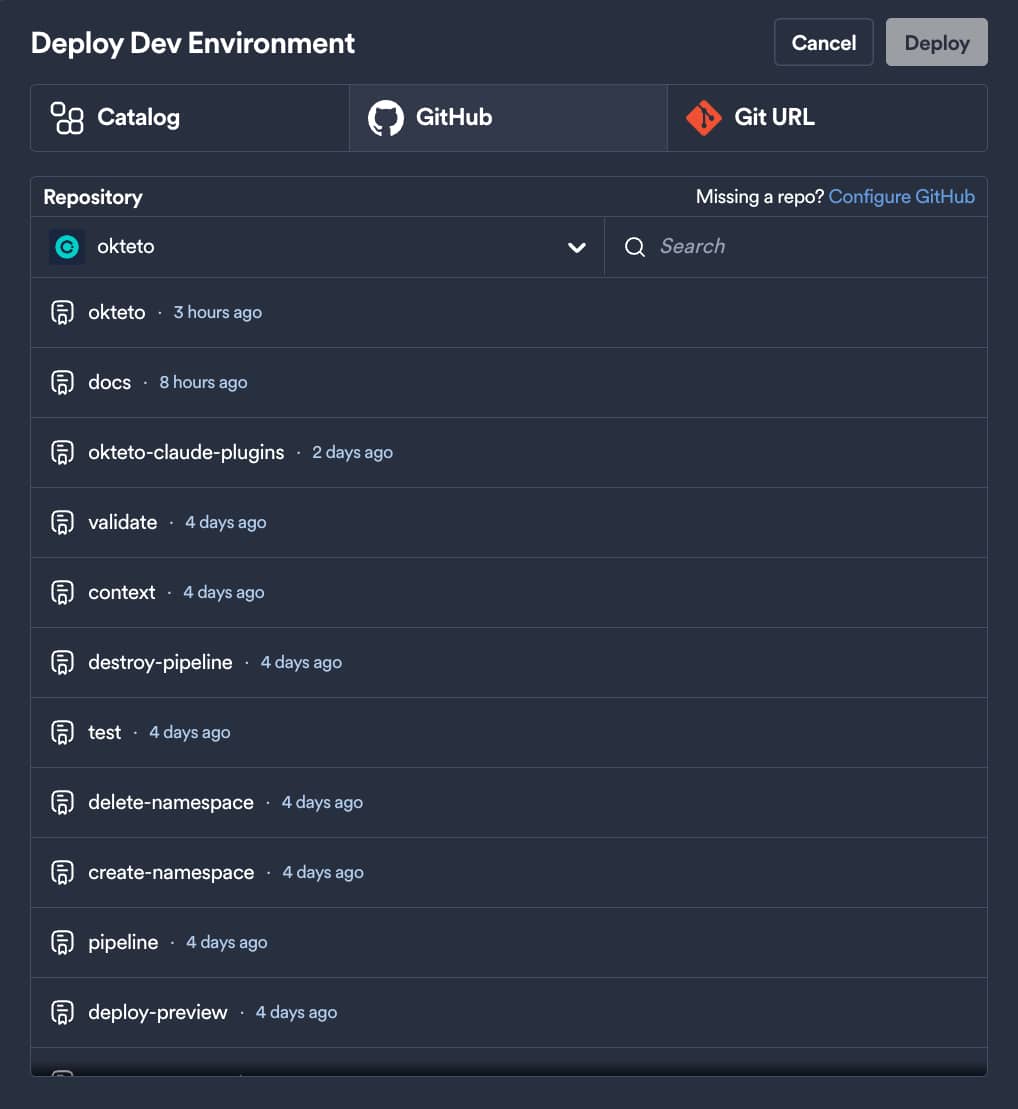
When you select it, you see the repositories that your GitHub App can access. From private repositories explains how to deploy a private repository.