Getting Started with Okteto and Python
Okteto runs your Python application in Kubernetes while you edit it on your machine: every time you save a file, the change runs in your cluster a few seconds later, and you can debug it with breakpoints from your IDE. The Python Sample App, a hello world FastAPI application, is configured so that Okteto builds, deploys, and tests it directly in your Kubernetes cluster. To do the same in your own repository, we recommend using an AI agent with the Okteto agent skills.
Prerequisites
- The Okteto CLI, installed and configured to access your Okteto instance. See the installation guide.
- To debug the application: PyCharm Professional, which includes the Python Debug Server.
Clone the Python Sample App:
git clone https://github.com/okteto/python-getting-started
cd python-getting-started
The Dockerfile
The Dockerfile of the Python Sample App defines two images, one per stage:
FROM python:3.15.2-trixie AS dev

RUN pip install --no-cache-dir pydevd-pycharm==263.7307.329

WORKDIR /usr/src/app
COPY requirements.txt .
RUN pip install --no-cache-dir -r requirements.txt
COPY . .

FROM python:3.15.2-slim-trixie AS prod

WORKDIR /usr/src/app
COPY requirements.txt .
RUN pip install --no-cache-dir -r requirements.txt
COPY app.py .
CMD ["uvicorn", "app:app", "--host", "0.0.0.0", "--port", "8080"]
devis the development image. It contains Python, the build tools thatpipneeds to compile packages, the dependencies inrequirements.txt(FastAPI and Uvicorn, which also reloads the application in the Development Container), pydevd-pycharm for debugging with PyCharm, and the source code.requirements.txtis copied and installed before the source code, so a change toapp.pydoesn't reinstall the dependencies.prodis the application image. It contains the slim Python runtime, the dependencies inrequirements.txt, andapp.py, without the debugger. Uvicorn serves the application on port8080.
The dev stage follows the recommendations for development images: every version is pinned, and the application image installs the same requirements.txt as the development image.
The Okteto Manifest
The okteto.yml file is the Okteto Manifest of the Python Sample App.
Build
The build section builds both images:
build:
  dev:
    context: .
    target: dev
  hello-world:
    context: .
    target: prod
    depends_on:
      - dev
target selects a stage of the Dockerfile. depends_on makes Okteto build the dev image first. Okteto pushes both images to the Okteto Registry and stores their references in the OKTETO_BUILD_DEV_IMAGE and OKTETO_BUILD_HELLO_WORLD_IMAGE variables.
Deploy
The deploy section installs the Helm chart in the chart folder, with the application image that Okteto built:
deploy:
  image: alpine/helm:4.3.2
  commands:
    - helm upgrade --install hello-world chart --set image=${OKTETO_BUILD_HELLO_WORLD_IMAGE}
The command runs with Remote Execution, in a container inside your cluster that uses the image set in deploy.image, so you don't need Helm on your machine.
Deploying the Python Sample App
Run okteto deploy from the root folder of the Python Sample App:
okteto deploy
Okteto builds the dev and hello-world images, runs the deploy command, and prints the endpoint of the application:
 i  Using cindy @ okteto.example.com as context
 ✓  Image 'registry.okteto.example.com/cindy/python-getting-started-dev:okteto' successfully pushed
 ✓  Image 'registry.okteto.example.com/cindy/python-getting-started-hello-world:okteto' successfully pushed
 i  Running stage 'helm upgrade --install hello-world chart --set image=${OKTETO_BUILD_HELLO_WORLD_IMAGE}'
Executing command 'helm upgrade --install hello-world chart --set image=${OKTETO_BUILD_HELLO_WORLD_IMAGE}'...
Release "hello-world" does not exist. Installing it now.
NAME: hello-world
NAMESPACE: cindy
STATUS: deployed
REVISION: 1
 i  Endpoints available:
  - https://hello-world-cindy.okteto.example.com
 ✓  Development environment 'python-getting-started' successfully deployed
Open the endpoint in your browser to see the Hello World! response. The Okteto UI shows the same endpoint:

Okteto creates an HTTPS endpoint for the Ingress in the Helm chart.
Testing the Python Sample App
The test section of the Okteto Manifest defines a Test Container that runs the unit tests in test_app.py with pytest and the FastAPI test client:
test:
  unit:
    image: ${OKTETO_BUILD_DEV_IMAGE}
    caches:
      - /root/.cache/pip
    commands:
      - pip install -r requirements-test.txt
      - pytest --junitxml=report.xml
    artifacts:
      - report.xml
image: the development image, so the tests run with the same Python version and dependencies as the Development Container.caches: the pip cache, kept between runs of the Test Container.pip installdownloads the test dependencies on the first run and installs them from the cache on the next ones.commands: the commands that run the tests.requirements-test.txtadds pytest andhttpx2, the HTTP client of the FastAPI test client, to the dependencies inrequirements.txt, which the development image already has. The Test Container fails if any of them exits with a non-zero code.artifacts: the files that Okteto copies to your machine when the tests finish, in this case the JUnit report of pytest.
Test Containers run with Remote Execution, in a container inside your cluster.
Run the unit tests from the root folder of the Python Sample App:
okteto test
 i  Using cindy @ okteto.example.com as context
 i  Images were already built. To rebuild your images run 'okteto build'
 i  Executing test container 'unit'
 i  Running 'pip install -r requirements-test.txt'
Collecting httpx2==2.16.2 (from -r requirements-test.txt (line 3))
  Using cached httpx2-2.16.2-py3-none-any.whl.metadata (10.0 kB)
Successfully installed Pygments-2.21.0 httpcore2-2.16.2 httpx2-2.16.2 iniconfig-2.3.1 packaging-26.3 pluggy-1.7.0 pytest-9.2.0 truststore-0.10.5
 ✓  Command 'pip install -r requirements-test.txt' successfully executed
 i  Running 'pytest --junitxml=report.xml'
============================= test session starts ==============================
platform linux -- Python 3.15.2, pytest-9.2.0, pluggy-1.7.0
rootdir: /okteto/src
plugins: anyio-4.16.0
collected 1 item
test_app.py .                                                            [100%]
------------------ generated xml file: /okteto/src/report.xml ------------------
============================== 1 passed in 0.26s ===============================
 ✓  Command 'pytest --junitxml=report.xml' successfully executed
 ✓  Test container 'unit' passed
The JUnit report is now in report.xml, in the root folder of the Python Sample App on your machine. Your CI system can read it to show the results of each test.
Running okteto deploy and okteto test after each change is usually fast enough, especially when an AI agent writes and tests the code autonomously. With the Okteto agent skills, the agent runs this loop in its own Namespace and reports back the tests it ran, the endpoints of the application, and a link to that Namespace.
Developing in a Development Container
If you use AI agents, the Development Container is optional: agents work well with the okteto deploy and okteto test cycle, and don't need one. A Development Container gives you the experience of developing on your machine, with hot reload and a debugger on every change. When you run okteto up, Okteto replaces the hello-world Deployment with the Development Container, keeps your local files synchronized with it, and runs the hot-reload and debugging tools of the development image in your cluster.
While okteto up is running, an AI agent with the Okteto agent skills skips the build and deploy cycle: your changes already reach the Development Container through File Sync, so the agent waits for you to tell it what to run next.
Configuration
The dev section of the okteto.yml file defines the Development Container of the Python Sample App:
dev:
  hello-world:
    image: ${OKTETO_BUILD_DEV_IMAGE}
    command: uvicorn app:app --host 0.0.0.0 --port 8080 --reload
    sync:
      - .:/usr/src/app
    persistentVolume:
      enabled: false
    reverse:
      - 9000:9000
The hello-world key matches the name of the Deployment in the Helm chart. These are the fields of the Development Container:
image: the development image built in thebuildsection.command: starts Uvicorn with--reload, which restarts the application every time a.pyfile changes.sync: synchronizes the root folder of the Python Sample App with/usr/src/app, the working directory of the development image.persistentVolume: disables the persistent volume of the Development Container. Okteto synchronizes the files again on everyokteto up, and the dependencies come from the development image, so there's no volume to create and attach.reverse: forwards port9000of the Development Container to port9000of your machine, where the PyCharm debugger listens.
Hot reload
Run okteto up to replace the hello-world Deployment with the Development Container:
okteto up
Okteto synchronizes your files and starts Uvicorn, which runs the application in a server process and restarts it when a file changes:
 i  Using cindy @ okteto.example.com as context
 i  'python-getting-started' was already deployed. To redeploy run 'okteto deploy' or 'okteto up --deploy'
 i  Images were already built. To rebuild your images run 'okteto build'
 ✓  Images successfully pulled
 ✓  Files synchronized
    Context:   okteto.example.com
    Namespace: cindy
    Name:      hello-world
    Reverse:   9000 <- 9000

INFO:     Will watch for changes in these directories: ['/usr/src/app']
INFO:     Uvicorn running on http://0.0.0.0:8080 (Press CTRL+C to quit)
INFO:     Started reloader process [83] using StatReload
INFO:     Started server process [85]
INFO:     Waiting for application startup.
INFO:     Application startup complete.
Open app.py in your IDE, change the response message on line 9 to Hello world from Okteto!, and save the file:
@app.get('/', response_class=PlainTextResponse)
def hello_world():
    msg = 'Hello world from Okteto!'
    return msg
Okteto synchronizes app.py to the Development Container, and Uvicorn restarts the server process:
WARNING:  StatReload detected changes in 'app.py'. Reloading...
INFO:     Shutting down
INFO:     Waiting for application shutdown.
INFO:     Application shutdown complete.
INFO:     Finished server process [85]
INFO:     Started server process [109]
INFO:     Waiting for application startup.
INFO:     Application startup complete.
Reload the endpoint in your browser to see the new message. The change runs in your cluster without building an image or redeploying the application.
Press Ctrl+C to stop Uvicorn and exit okteto up.
Debugging with PyCharm
PyCharm listens for the debugger on your machine, and the debugger in the Development Container (pydevd-pycharm) connects to it through port 9000, which okteto up forwards from the Development Container to your machine.
The version of pydevd-pycharm must match the build of your PyCharm. Open Run > Edit Configurations, select the Remote configuration of the Python Sample App, and check the pip install pydevd-pycharm~=<build> command that PyCharm shows. If the build is different from 263.7307.329, change the version in the Dockerfile and run okteto deploy to rebuild the development image.
The .idea/runConfigurations/Remote.xml file of the Python Sample App defines the Remote configuration, a Python Debug Server on port 9000:
<component name="ProjectRunConfigurationManager">
  <configuration default="false" name="Remote" type="PyRemoteDebugConfigurationType" factoryName="Python Remote Debug">
    <module name="python-getting-started" />
    <option name="PORT" value="9000" />
    <option name="HOST" value="localhost" />
    <PathMappingSettings>
      <option name="pathMappings">
        <list>
          <mapping local-root="$PROJECT_DIR$" remote-root="/usr/src/app" />
        </list>
      </option>
    </PathMappingSettings>
    <option name="REDIRECT_OUTPUT" value="true" />
    <option name="SUSPEND_AFTER_CONNECT" value="false" />
    <method v="2" />
  </configuration>
</component>
remote-root is the path in the sync field of the Okteto Manifest. If you synchronize your code to another path, change remote-root to match it.
Open the Python Sample App in PyCharm and debug the Remote configuration. The Debug tool window shows Waiting for process connection.... Start the Remote configuration before you uncomment attach(), because attach() connects to it when the application starts.
With okteto up running, uncomment the call to attach() on line 20 of app.py and save the file:
def attach():
    import pydevd_pycharm
    print('Connecting to debugger...')
    pydevd_pycharm.settrace('localhost', port=9000, suspend=False, stdout_to_server=True, stderr_to_server=True)

# uncomment to use PyCharm's remote debugger
attach()
Uvicorn restarts the server process, and attach() connects it to PyCharm through port 9000 when the server process imports app.py:
WARNING:  StatReload detected changes in 'app.py'. Reloading...
INFO:     Finished server process [111]
Connecting to debugger...
INFO:     Started server process [112]
INFO:     Waiting for application startup.
INFO:     Application startup complete.
The Debug tool window shows Connected to pydev debugger:
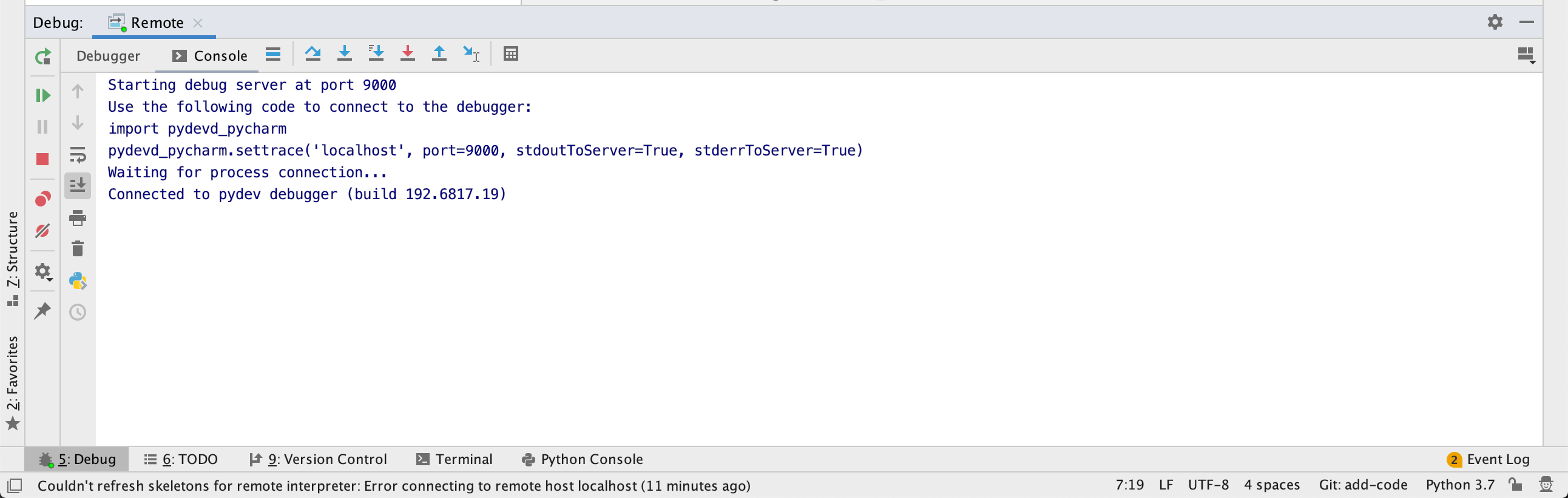
Add a breakpoint on line 10 of app.py and reload the endpoint in your browser. Execution stops at the breakpoint, and you can inspect the request and the variables. Every time you save a file, Uvicorn starts a new server process, and attach() connects it to PyCharm again.
To stop debugging, comment the call to attach() again and save app.py. Press Ctrl+C to stop Uvicorn and exit okteto up.
Cleaning up
okteto down stops the Development Container and brings back the hello-world Deployment with the application image:
okteto down
When you're done, okteto destroy uninstalls the Helm release of the Python Sample App from your Namespace:
okteto destroy
FAQ
How do I make builds, deploys, and okteto up faster?
Upload only the files that each command needs: the context upload is key to performance. Every okteto build, okteto deploy, okteto test, and okteto up uploads files from your machine, and three ignore files decide what gets uploaded: .dockerignore for the image builds, .oktetoignore for okteto deploy, okteto test, and okteto destroy, and .stignore for File Sync. An AI agent with the Okteto agent skills configures them for your application and measures how much faster your builds, deploys, and okteto up get. Optimize your Development Environments covers these and other optimizations.
How do I deploy an application with several services and a database?
Follow Deploy Your Application to Okteto if you deploy with a Helm chart, or Develop a Docker Compose application with Okteto if you use Docker Compose. If your services live in several repositories, see Deploy a multi-repo application with dependencies.
Do I need to deploy the whole application in every Namespace?
No. Divert lets you deploy only the services you change and reuse the services of a shared environment.
How do I start each environment with realistic data?
Create its database from a Volume Snapshot instead of running a seed script on every deploy. Data from Volume Snapshots shows how.
How do I create resources outside Kubernetes, such as a cloud database?
Create them in the deploy and destroy commands with your infrastructure as code tool, so every environment gets its own cloud resources. Create cloud infrastructure with Terraform shows how, with an Amazon S3 bucket for each environment.
Where can I find every field of the Okteto Manifest?
The Okteto Manifest reference lists every field of build, deploy, destroy, test, and dev.